

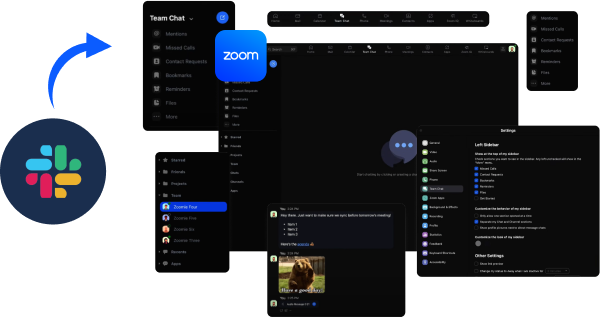













Are you waiting to migrate from Slack to Zoom but unsure how to transfer your data? We make it easy by
transferring your users, channels, and chats seamlessly to Zoom. Let us handle the hard part, so you can
switch to Zoom without any stress.
Steps Of The Migration
Step 1
Migrate Slack users to
Zoom
Step 2
Create private and public channels and add
members to Zoom
Step 3
Migrate channel chats and direct chats of the users to Zoom
Migration With Slack Export Files
How To Share?
Add the chat files to a bucket in your GCP instance
Give access to codimite development account
What can be exported?
You will have complete control over who can access data
You can choose to revoke Codimite’s access to your data at any time
Chat Migration Use Cases
Deactivated users:
They can be migrated. The customer will have to enable auto-activation in their Zoom accounts for this.
External users:
Guest or external users can be added to the Zoom instance with basic licenses if required.
Chats of Deactivated users:
They can be migrated. The customer will have to enable auto-activation in their Zoom accounts for this.
Migration FAQs
Q1. How do you migrate Slack chats to Zoom?
We migrate the chats using an automated tool built by codimite
Q2. What is the process of migrating Slack chats to Zoom?
Migrate Slack users to the Zoom account.
Create private and public channels and add members to Zoom.
Migrate channel chats and direct chats of the users to Zoom.
Q3. How far back can you migrate?
We can migrate chats from any period if data is available. Migration time
depends on the period.
Q4. How can I share the export files with Codimite?
You can add the files to a GCP bucket, Google Drive, or One Drive and
share the link.
Q5. How do you ensure the privacy of my data?
There will be no human interaction with your data les. They will be moved
from one platform to another using an automated process.
We will not store any of the les uploaded to the chat migration tool
You can remove the les from the cloud storage or revoke our access to the
les at any time. Your data is in your control.
Q6. Does Codimite need access to our Zoom account to migrate the chats?
Yes, we will need a Zoom admin account in your new Zoom instance. This account is strictly for
authentication purposes of the Zoom API.
We will not store any of the files uploaded to the chat migration tool.
We will need the following permissions for this Zoom admin account.
View and Edit "Chat messages"
View and Edit "Chat channels"
Chat Management
View "Chat history"
Users
Q7. Does Codimite need access to a customer’s Slack account?
No, access to Slack will not be required.
Q8. Are there any prerequisites for the chat migration?
Yes, the following conditions have to be met to migrate the chats successfully.
The users must use the same email address they use in Slack for their Zoom accounts.
All the users must accept their invitations to join Zoom before migrating the channels and chats.
Chats of the users who have not accepted the invitations will not be migrated.
All the users must be added to their channels before migrating the chats. If a member is missing
from a channel, their chats will not be migrated.
Q9. Can you migrate attachments?
Unfortunately, the actual attachments are not available in the Slack export le. We can only migrate the
links of the attachments.
Q10. Can we migrate the chat messages with the original timestamp?
Yes, the new Zoom Team Chat migration APIs allow us to migrate chats while preserving their original
timestamps.
Q11. Are these chats migrated in the order they were sent?
Yes, the chats will be migrated in the correct order they were sent originally.
Q12. Can we migrate the latest chats first and migrate the older chats later?
Yes, with new Zoom Team chat migration APIs, you can migrate your most recent messagedata first and then
continue to migrate the older message data later.
Privacy And Security
Here will be no human interaction with your data files. They will be moved from one platform to another
using an automated service.
We will not store any of the files uploaded to the chat migration service.
You can remove the files from the cloud storage or revoke our access to the files at any time. Your data
is in your control.

Our notifications keep you updated with the latest articles and news. Would you like to
receive these notifications and stay connected ?
Not Now
Yes Please
Install CODIMITE ?
CODIMITE PWA Application
Install CODIMITE on your device to easily access it anytime, even offline. No App Stores,
Receive
notifications and read new articles before anyone else.
1. Tap the Share icon in Safari
2. Scroll down and tap Add to Home
Screen
3. Tap Add to confirm
1. Tap the Menu icon in
the top right
corner
2. Tap Add to Home Screen or
Install
1. Tap the Menu icon in
the top right
corner
2. Tap Add to Home Screen or
Install
We value your privacy
Codimite uses essential cookies to keep our website secure and functional. With your consent, we also use
analytics and marketing cookies to improve your experience and understand website usage.
You can accept all cookies, reject all cookies, or manage your preferences. Learn more in our
Privacy Policy.
We use cookies to understand how our website is used. You can
or
.
See our Privacy Policy.
Cookie
Preferences
Choose which cookie categories you allow. Strictly necessary cookies are always active because they
are required for the website to function securely.
Strictly Necessary CookiesAlways Active
Required for essential website functions, form security, and remembering your cookie preferences.
Performance Cookies
Help us understand how visitors use the website, measure page and campaign performance, and
improve our content and user experience.
Advertising Cookies
Help us measure marketing campaigns and show more relevant advertisements on third-party
platforms. These cookies may share information about your visit with our advertising partners.