How to Migrate from Island Browser to Chrome Enterprise Premium

Introduction
Rolling out a dedicated enterprise browser often starts with strong security intentions, only to run into everyday operational friction: internal web apps breaking, employees opening a second browser on the side, third-party MDM integrations stalling, and renewal quotes climbing north of $250,000.
If your renewal is approaching and you are looking for a cleaner Island Browser alternative, migrating to Google Chrome Enterprise Premium (CEP) allows you to retain deep Data Loss Prevention (DLP) and Zero Trust controls while eliminating the cost and friction of maintaining a separate browser stack.
Why IT Teams Are Switching Back to Native Chrome
Teams making the switch rarely do so because they want less security, they switch because security only works when employees don’t bypass it. Consolidating onto Chrome Enterprise Premium solves three core pain points immediately:
- Zero App-Compatibility Friction: Because CEP is Google Chrome, every internal SaaS portal, legacy web app, and SSO redirect works out of the box.
- Predictable, Transparent Economics: Moving from a $250,000+ minimum commitment to $6/user/month typically cuts annual licensing spend by 60% or more.
- Unified Cloud Management: IT admins manage policies, extensions, and DLP rules from a single cloud console, Google Admin Console rather than juggling split configurations.
The 3-Phase Migration Playbook: Assess → Pilot → Deploy
Migrating off Island doesn’t require a disruptive “big bang” cutover. Because Google Chrome is likely already installed on your endpoints, you can transition policies smoothly over 30 days.
Phase 1: Assess & Map Policies (Days 1–7)
- Audit Active Island Rules: Export your existing URL allow/block lists, copy/paste restrictions, upload/download DLP rules, and extension policies.
- Identify True Edge Cases: Separate standard corporate users (85–90% of staff) from specialized roles (e.g., unmanaged external contractors requiring forensic session video recording) so you know whether a small cohort should remain on a specialized tool.
- Enroll Browsers in Chrome Enterprise Core: Push the Chrome enrollment token via your existing MDM (Intune, Jamf, Workspace ONE) to bring all corporate Chrome instances into Google Admin Console at $0 cost.
Phase 2: Pilot & Tune in Audit Mode (Days 8–18)
- Select a Cross-Functional Pilot Group: Include IT, security, finance, and high-friction clinical or operations users to validate real-world workflows.
- Enable CEP Connectors in Audit Mode: Turn on upload, download, clipboard, and OCR content inspection in Audit Only mode. This logs rule triggers in the Security Investigation Tool without blocking daily work.
- Configure Context-Aware Access (CAA): Define device posture rules (corporate-owned, disk encrypted, OS patched) and bind them to your SSO provider (Okta, Entra ID, Google Workspace)
Phase 3: Phased Deployment & Decommission (Days 19–30)
- Move from Warn to Block: Shift high-confidence DLP rules (such as blocking source code or SSN uploads to unapproved AI tools) to Warn with Justification for 5 days, then enforce Block mode.
- Set Chrome as Default & Retire Island Licenses: Update MDM profiles to set managed Chrome as the default browser, verify third-party integrations (like Jamf Connect), and decommission redundant Island installations before your renewal deadline.
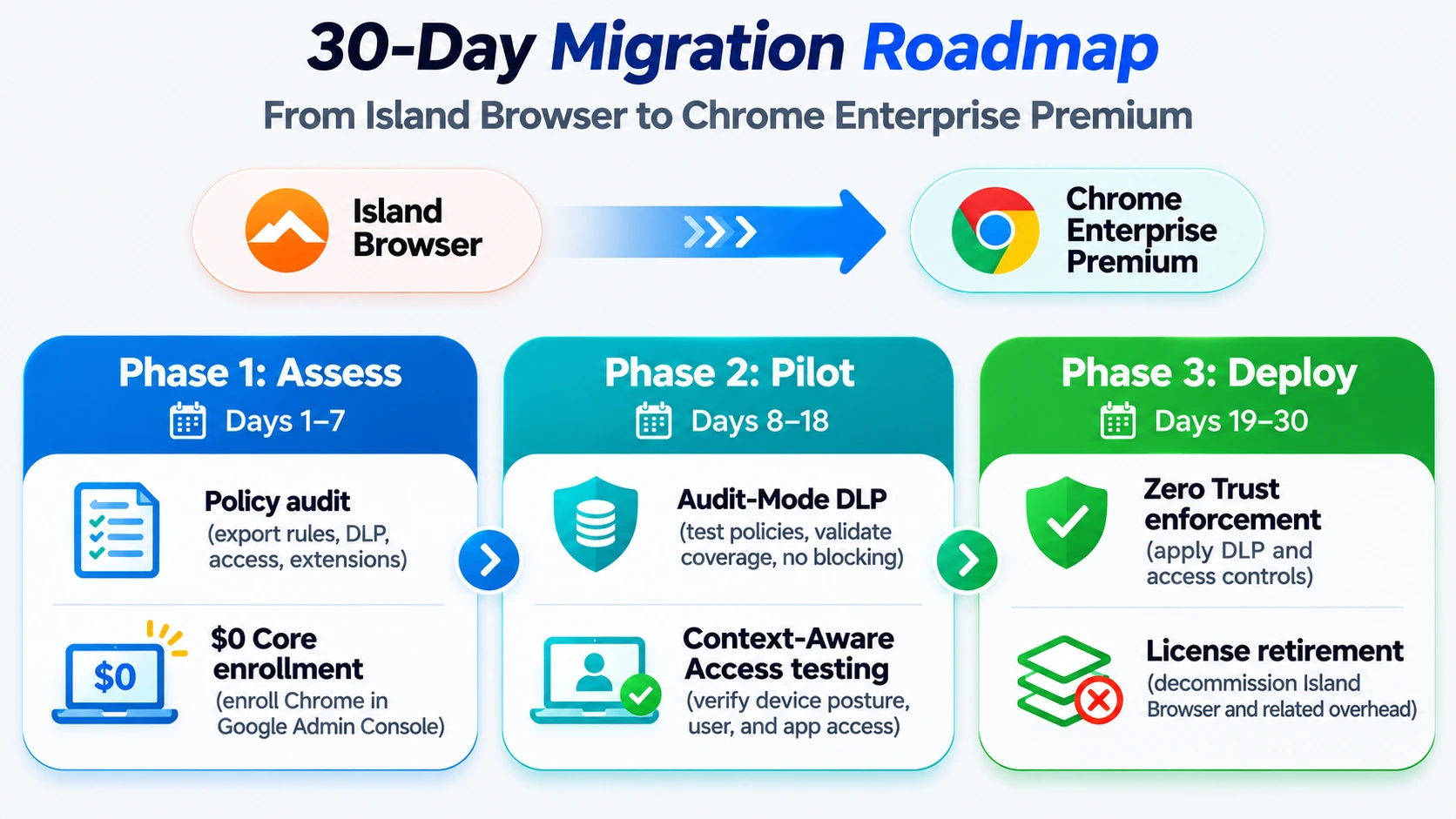
Migration Summary Table
| Migration Phase | Timeline | Key Technical Action | User Impact |
|---|---|---|---|
| 1. Assess | Days 1 – 7 | Map Island DLP rules; enroll Chrome fleet into Google Admin Console ($0 Core) | Zero disruption (runs silently in background) |
| 2. Pilot | Days 8 – 18 | Activate CEP licenses for pilot OU; run DLP in Audit Mode; test Context-Aware Access | Minimal (silently logs policy triggers for tuning) |
| 3. Deploy | Days 19 – 30 | Enforce Warn/Block rules; set Chrome as default browser; retire Island licenses | Positive (faster speeds, native app rendering) |
Frequently Asked Questions (FAQ)
Will migrating break our existing SSO or MDM integrations?
No, in fact, it usually fixes broken ones. Chrome natively integrates with Okta, Microsoft Entra ID, Ping, Jamf Pro/Connect, and Microsoft Intune. Moving back to Chrome eliminates the custom browser compatibility workarounds often required by third-party browsers.
How long does a full migration from Island to Chrome Enterprise Premium take?
Most mid-market and enterprise organizations complete the transition in 3 to 4 weeks. Because Chrome is already present on most Windows and macOS endpoints, deployment is primarily a cloud policy and MDM configuration exercise rather than a heavy software rollout.
How should we handle VDI or Citrix workloads during the switch?
Neither Island nor Chrome Enterprise Premium replaces heavy desktop virtualization on its own. For the 85 – 90% of workflows running in SaaS and web apps, CEP handles security natively. For remaining VDI-class desktop apps, pair CEP with ChromeOS or Cameyo to retire legacy Citrix infrastructure affordably.
Ready to Evaluate Your Migration Path?
Whether you need a complete Chrome Enterprise Premium readiness assessment, security policy mapping, or a phased wave rollout across your fleet, our deployment practice is ready to help. Start Your Transition with Codimite’s Island to Chrome Enterprise Premium Migration Service now.